Skip to content
Herculean
Menu

install

Connect Grok to Herculean

Add Herculean as a custom connector in Grok, then start a conversation.

Grok logo

Before you connect

Create your Herculean account first at web.herculean.chat and sign in with Google. Grok will ask you to connect that existing account during setup.

1. Add Herculean as a custom connector

  1. Log into Grok and open the plugins settings in the bottom left
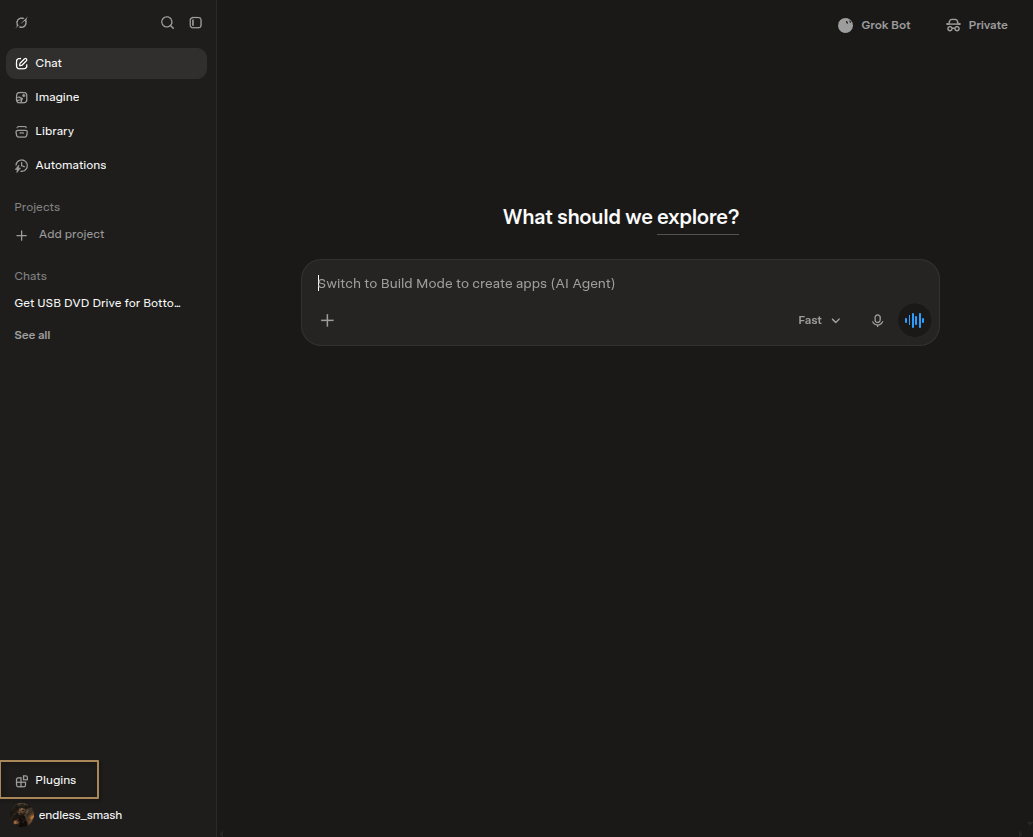
Grok's Plugins button highlighted in the lower-left corner of a chat.
Open Plugins to find Grok’s connector settings.
  1. Press the new connector button in the top right of the popup
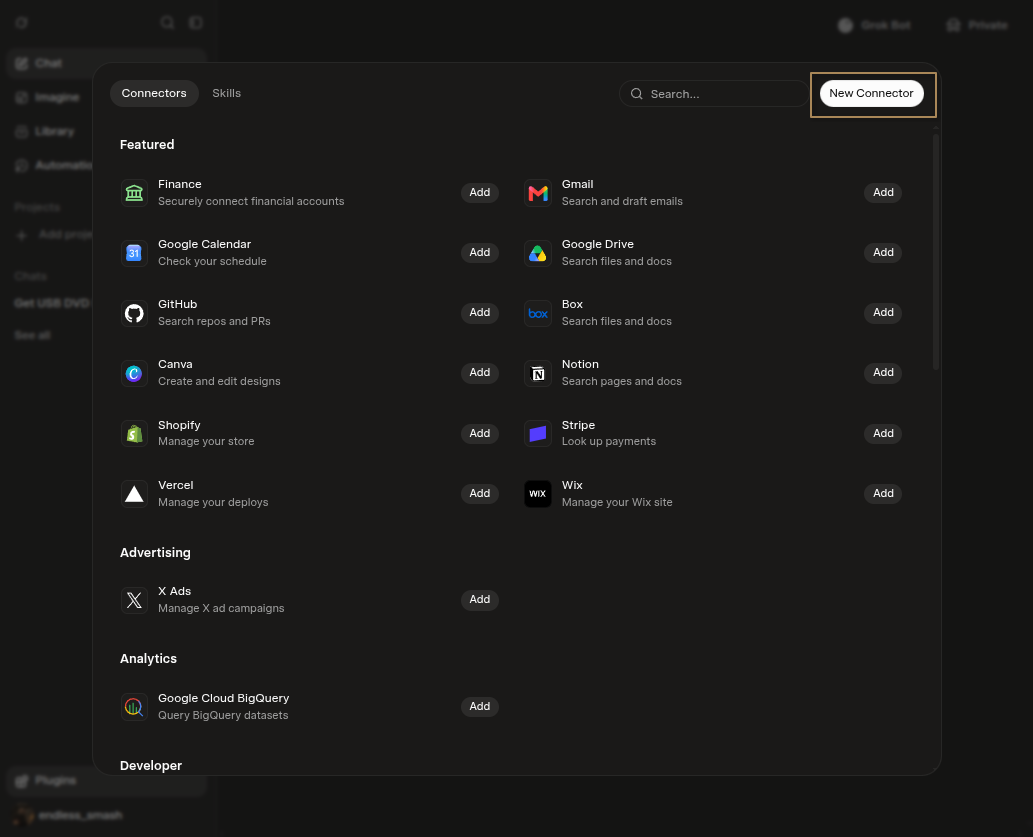
Grok's Connectors panel with the New Connector button highlighted.
Select New Connector to add Herculean.
  1. Choose the Custom button in the middle of the new popup
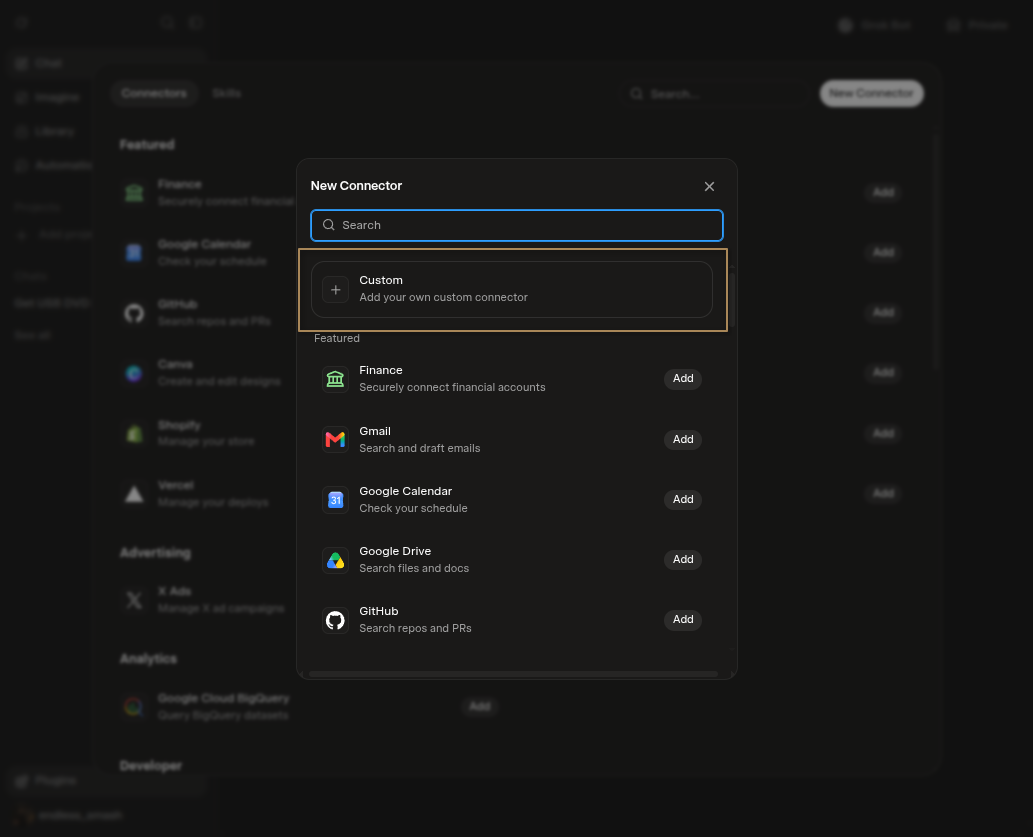
Grok's New Connector menu with the Custom option highlighted.
Choose Custom to enter Herculean’s MCP server details.
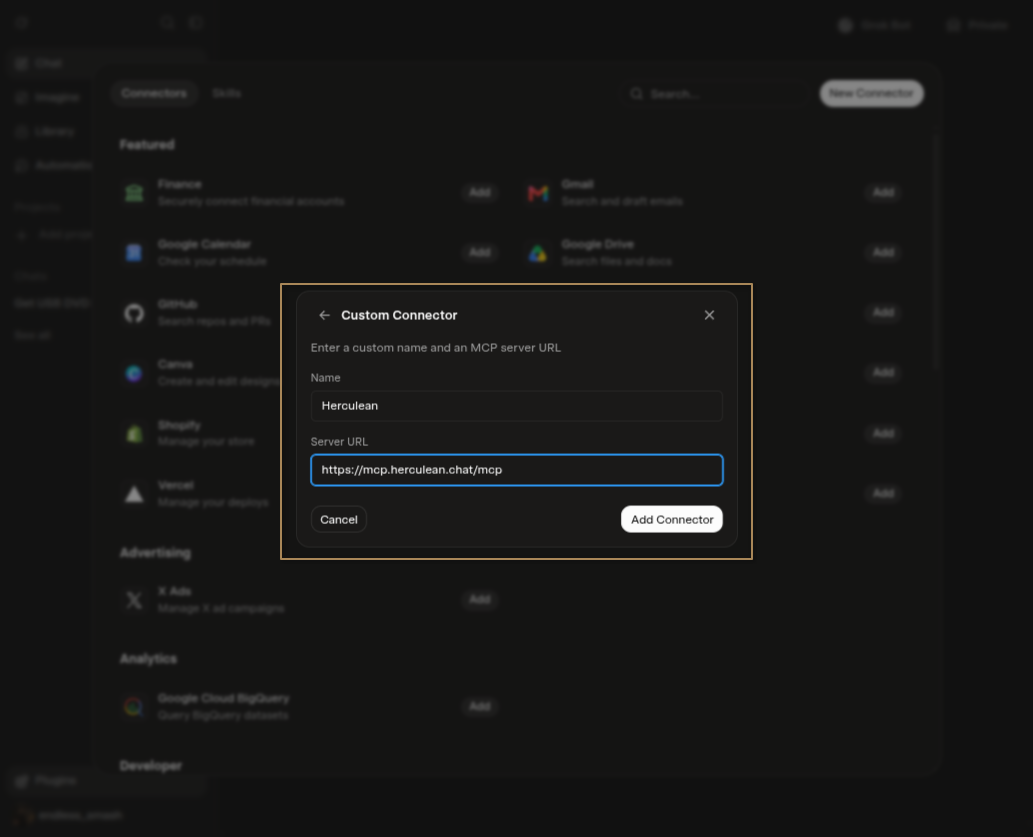
  1. In the new Custom Connector popup add the following details:
Name
Herculean

Server URL
https://mcp.herculean.chat/mcp

Grok's Custom Connector form with the name Herculean and its MCP server address entered.
Enter the connector name and server address, then select Add Connector.
  1. If you’re not signed in to Herculean you’ll be redirected to Herculean to sign in. Once signed in or if you’re signed in already, Herculean should turn up as connected in Grok’s plugins.
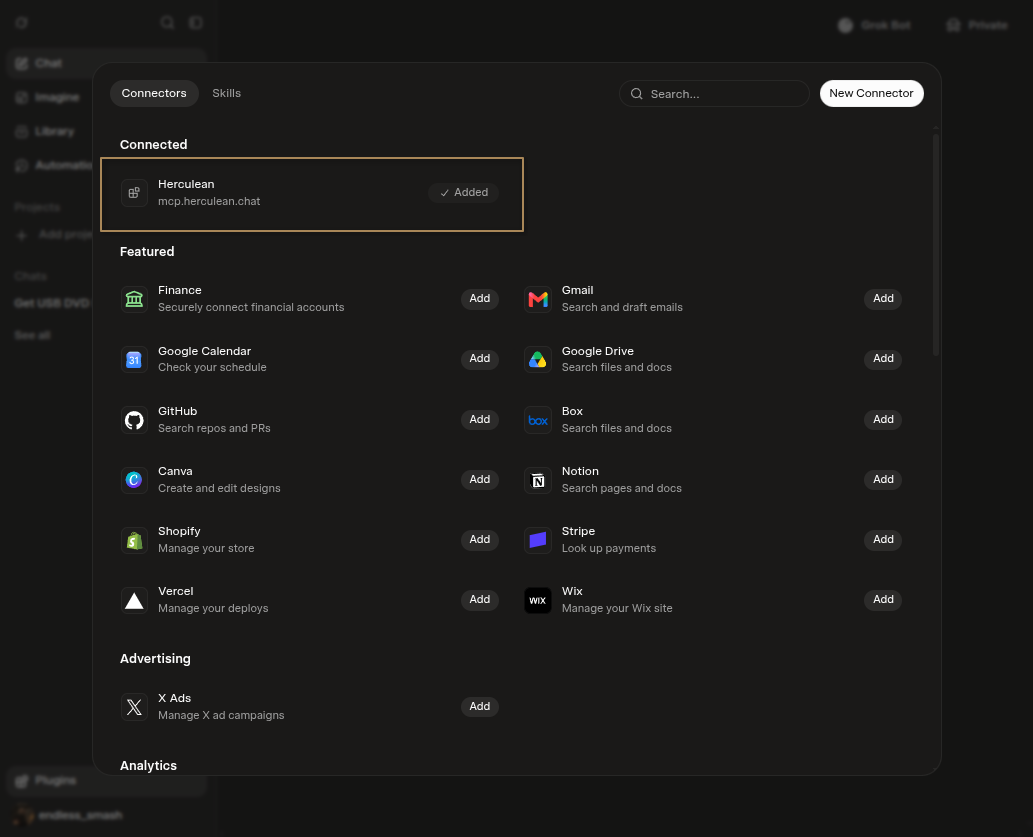
Grok's Connectors page showing Herculean under Connected.
Confirm that Herculean appears in the Connected section.
  1. Once connected, ask Grok about your upcoming work in Herculean.
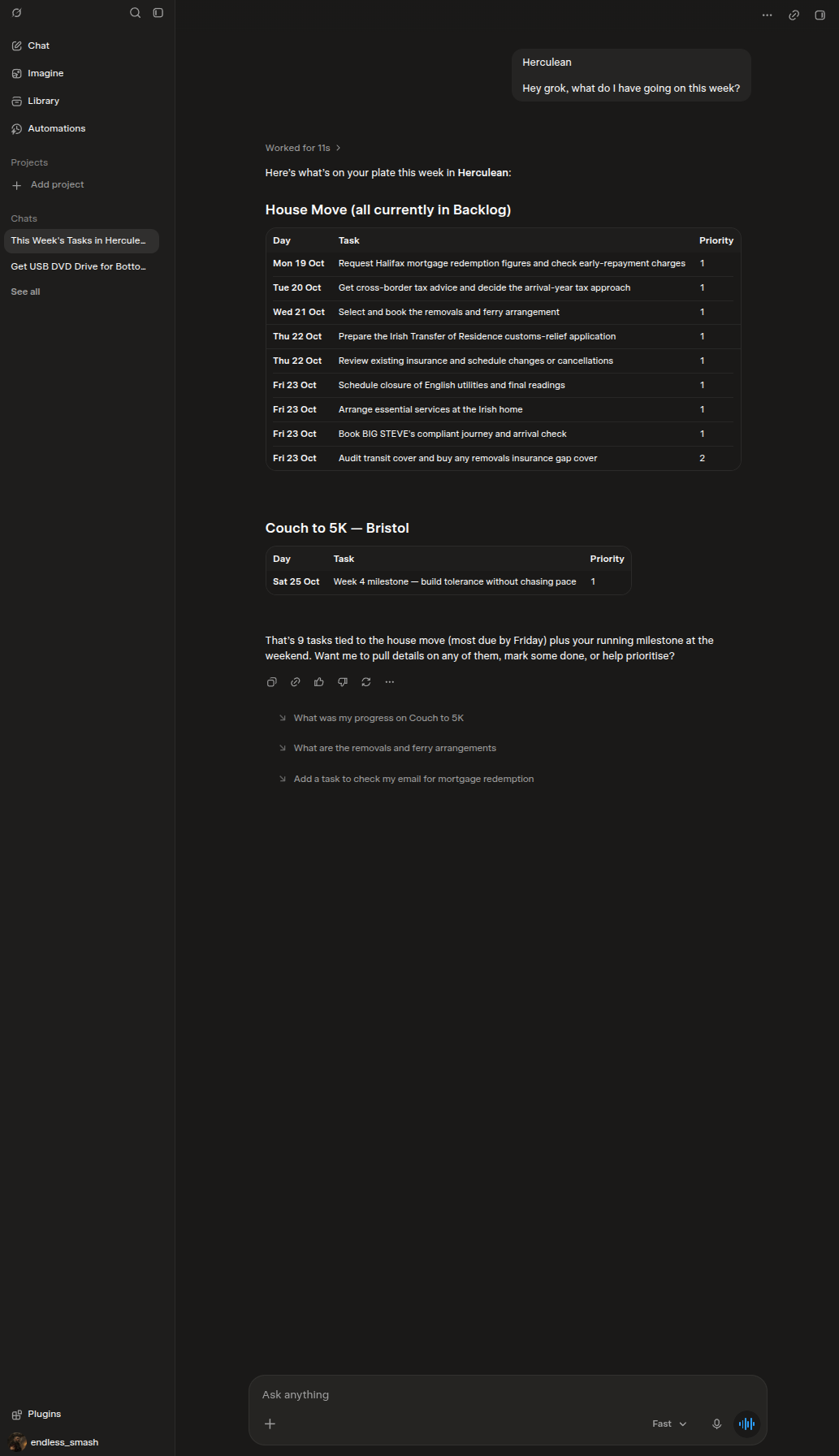
A Grok conversation using Herculean to show a weekly overview of tasks grouped by project and date.
Start by asking Grok what work is coming up this week.

Herculean is connected — start your first conversation →

← Back to Herculean installation