
Workflows and columns
Use Backlog, In Progress, Review, and Done to track task status, archive completed work, and configure project columns when needed.
BeginnerFour clear states
Each Herculean project starts with Backlog, In Progress, Review, and Done. The default flow is Backlog → In Progress → Review when needed → Done. Work you complete yourself can move directly from In Progress to Done; Review is especially useful for delegated work.
- Backlog holds future work that has been captured but is not being actioned now. It does not need to be perfectly specified yet.
- In Progress holds work you are doing or have deliberately brought into your immediate working horizon. Keep it relatively small; a crowded column can show that too much has been activated.
- Review means work has been performed, often by an AI agent or integration, but you have not yet accepted it as complete. The dashboard keeps this column unobtrusive when there is nothing waiting.
- Done means the work is complete. Delegated work should be reviewed and accepted before it is treated as finished.
Herculean is built with individuals in mind, and simplicity is a fundamental part of its design.
You can add additional columns to your project boards, but I’d encourage you not to.
Additional columns are often a symptom of an increasingly complicated workflow, and complexity reduces productivity. The more stages, processes and administrative overhead you introduce, the more time you spend managing your work rather than actually doing it.
Herculean’s four default columns — Backlog, In Progress, Review and Done — are deliberately straightforward. They provide everything you need to organise, execute, review and complete your work.
Herculean itself was developed using these four columns, managing the development and delivery of a complex software platform without ever needing to introduce additional workflow stages.
Keep history without board clutter
Completed tasks can be archived. They remain part of your historical data and statistics while staying out of ordinary working views and routine AI queries. Project-specific pages can expose fuller history, including archived work.
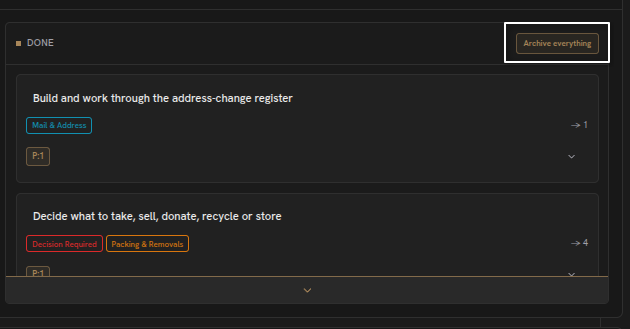
Your Done column has a button on the main dashboard that will archive all completed tasks at once.
Adding & managing columns
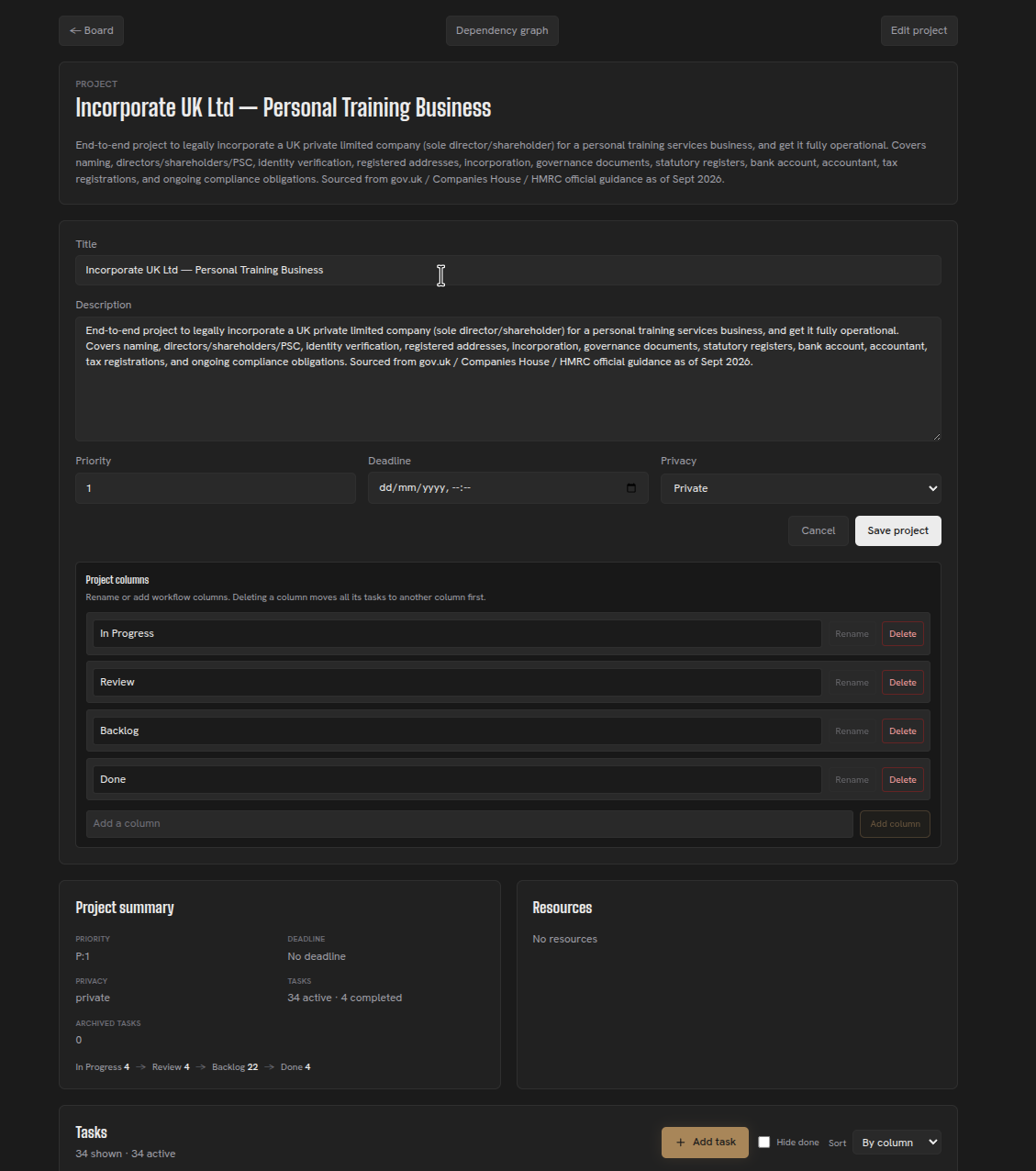
If you absolutely need additional columns, you can create them by editing the project directly. Your connected AI assistant can also add or manage columns when you explicitly instruct it to do so.
Columns are independent for each project, so customising the workflow in one project won’t affect any of your others.
You can manage a project’s columns from the Edit project popup on the dashboard or from its dedicated project page. The project page shows the controls for renaming, removing and adding columns:
A workflow should make it easier to finish work, not create more work to manage the workflow. For the board-wide view, see Dashboard; for task prerequisites, see Dependencies and diagrams.
Related content
Continue with other guides and examples connected to this topic.
Resources: pointers to working material
Link documents, repositories, and other external material to projects or tasks while leaving access permissions with the source service.
BeginnerImporting existing work
Use an AI agent to map an export into projects, tasks, labels, Resources, and simpler workflows, one project at a time.
IntermediateStart using Herculean
Create a Herculean account with Google, purchase a subscription and connect your AI agent in three steps.
Beginner