
Settings
Manage board behaviour, New Tab and Pirate Weather options, calendar privacy, modal behaviour, and account access from one panel.
BeginnerOpen settings
From the Herculean dashboard, select Settings in the upper-right corner. The settings panel brings together board behaviour, New Tab preferences, weather, calendar, and account controls.
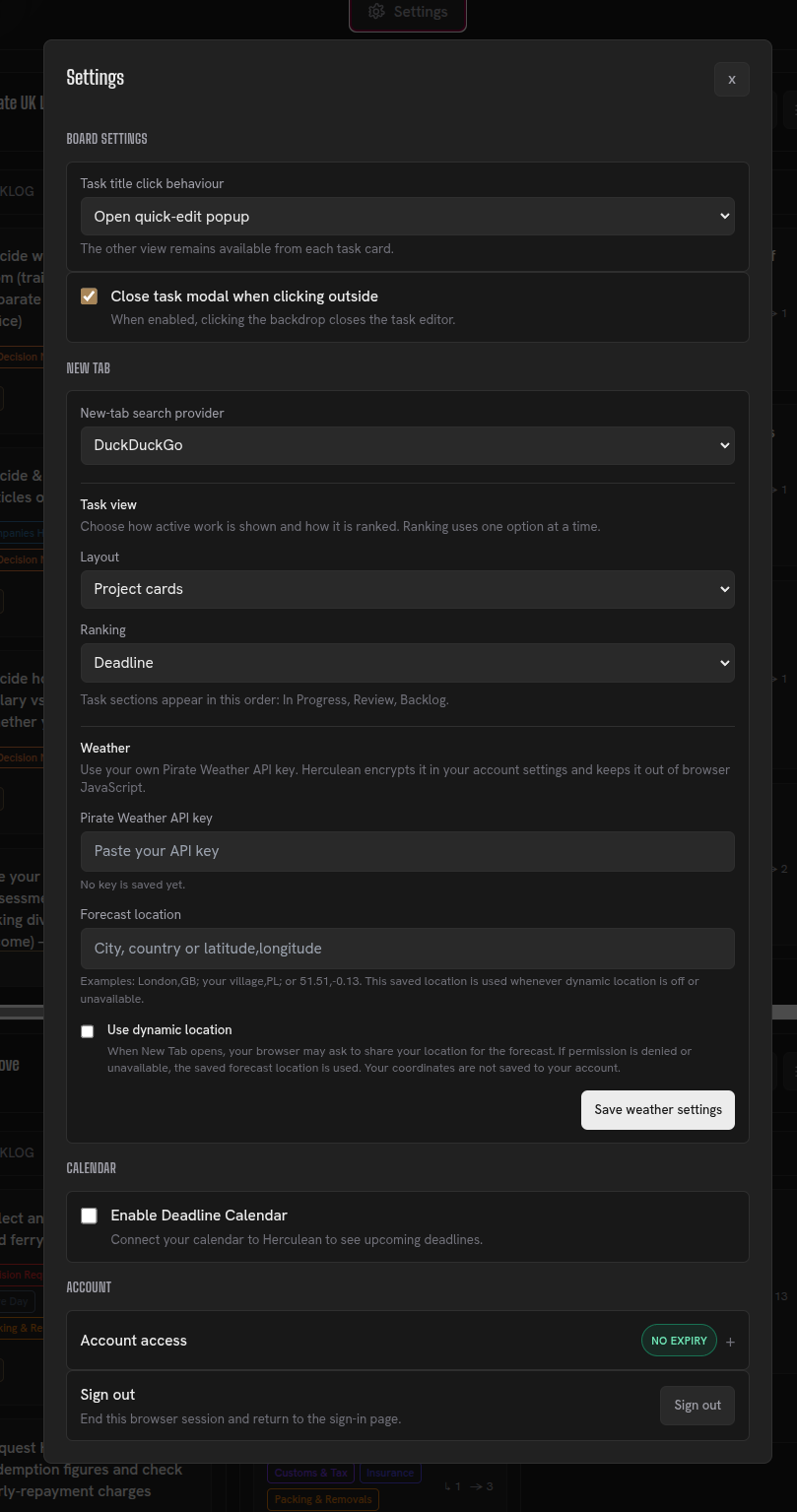
Choose board behaviour
Board settings controls all aspects of your main dashboard.
The Task Title Click Behavior setting lets you choose what happens when you click a task’s title.
You can select between two options:
- Quick Edit: Opens the task in a pop-up modal, allowing you to view and edit its details without leaving your current page.
- Dedicated Task Page: Takes you directly to the task’s full page, where you can view and manage its details. See Projects and tasks for more about task pages.
Modal Closing Behavior
You can also control how pop-up modals behave throughout Herculean.
- Close on Outside Click: Clicking anywhere outside an open modal automatically closes it.
- Close Using X Only: Modals remain open when you click outside them and can only be closed using the X button.
This is particularly useful when working with detailed task descriptions or making multiple edits, as it prevents you from accidentally closing a modal while working.
These settings let you customise how you navigate and interact with Herculean, making everyday task management more comfortable and efficient.
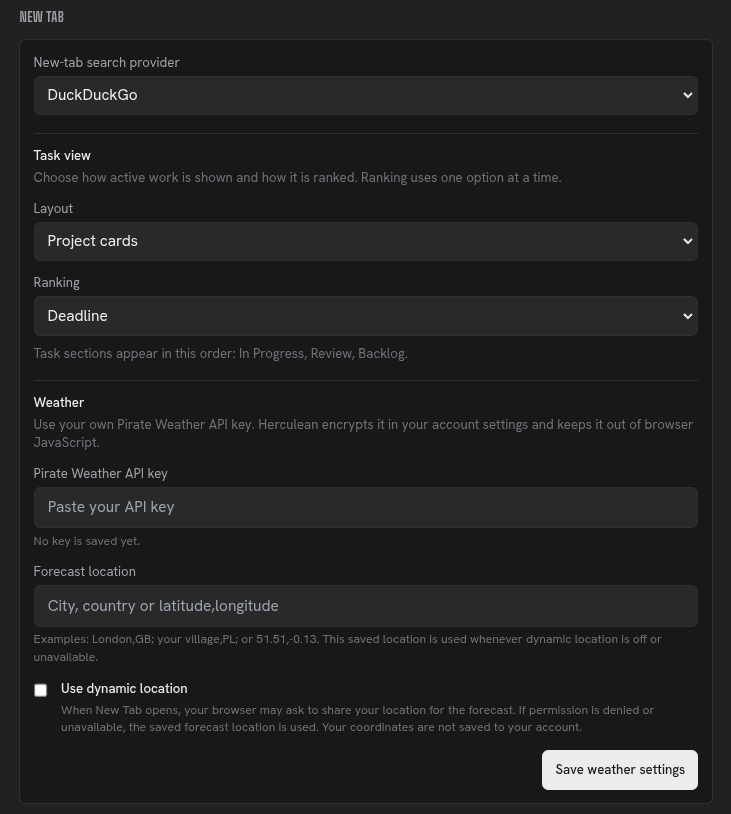
Set up New Tab and weather
The New Tab Settings give you control over how your Herculean New Tab page looks and functions.
From here, you can choose your preferred search or AI provider, customise how tasks and projects are displayed and prioritised, and configure your weather forecast using Pirate Weather, including your preferred location and weather settings.
These options allow you to tailor the New Tab page to your own workflow, keeping the information and tools most relevant to you immediately accessible.
For a complete breakdown of the available options and how to configure them, visit the New Tab features page.
Configure the calendar
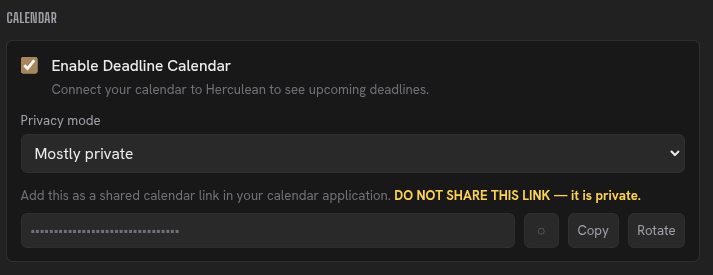
The Calendar Feed Settings allow you to enable and manage Herculean’s calendar integration directly from the dashboard.
From here, you can enable or disable your calendar feed, choose your preferred privacy mode to control how much task information is shared, and rotate your calendar URL if you believe it has been exposed or compromised.
Herculean’s calendar integration has some important behaviours and privacy considerations, particularly around how external calendar applications retrieve and refresh your deadlines.
We recommend reading the dedicated Calendar guide to understand how the integration works, what information is shared and how to configure it correctly.
Manage account access
The Account section keeps things simple, giving you a quick overview of your Herculean account and subscription.
For account setup and checkout, see Start using Herculean and the pricing page.
Expand the section to view your account status and how much time remains on your current Herculean subscription.
You’ll also find any account-related notes here, including feedback you’ve submitted, account management actions, restoration details and other relevant account history.
And, of course, you can sign out whenever you like. Whether you’re heading off on holiday, taking a break or it’s all getting a bit too much, that’s entirely up to you.
Don’t worry, you can sign back in whenever you’re ready. We won’t take it personally.
Related content
Continue with other guides and examples connected to this topic.
New Tab
Review selected Herculean projects or tasks in your browser's New Tab, check local weather, or search and prepare an AI prompt.
BeginnerDashboard
See active projects and task status together, edit work on the board, and keep completed tasks out of everyday view.
BeginnerDelegation and agent workflows
Give connected AI agents task context, ask them to research or organise work, and review their results in Herculean.
Advanced