
New Tab
Review selected Herculean projects or tasks in your browser's New Tab, check local weather, or search and prepare an AI prompt.
BeginnerA quiet reminder in your browser
Herculean’s New Tab page can be used as a browser homepage or new-tab destination on desktop or mobile. Alongside the time, weather and frankly beautiful background images, it surfaces a focused set of tasks or projects from your dashboard so opening a tab can remind you what needs attention without reproducing the full board.
Settings
Herculean’s New Tab page gives you a quick overview of your most important work, with two ways to view your tasks and projects and four ways to prioritise what appears.
Choose the layout, ranking method, search provider and weather options in the Settings guide.
Two ways to view your work
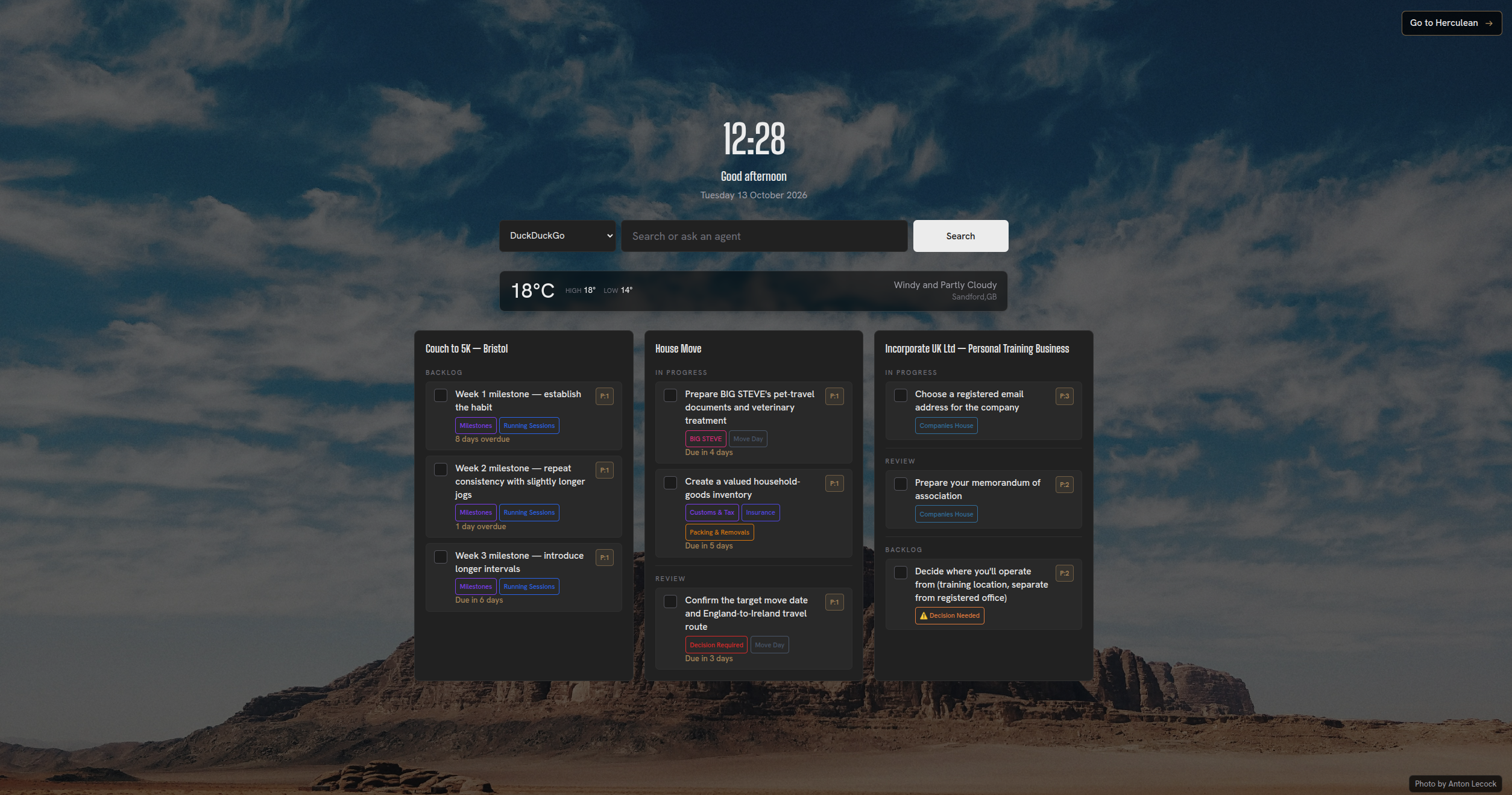
Projects View
Displays your top three projects, with up to three of the most relevant tasks shown within each project.
This view keeps your work grouped by project, making it ideal when you want to maintain visibility across several areas of responsibility.
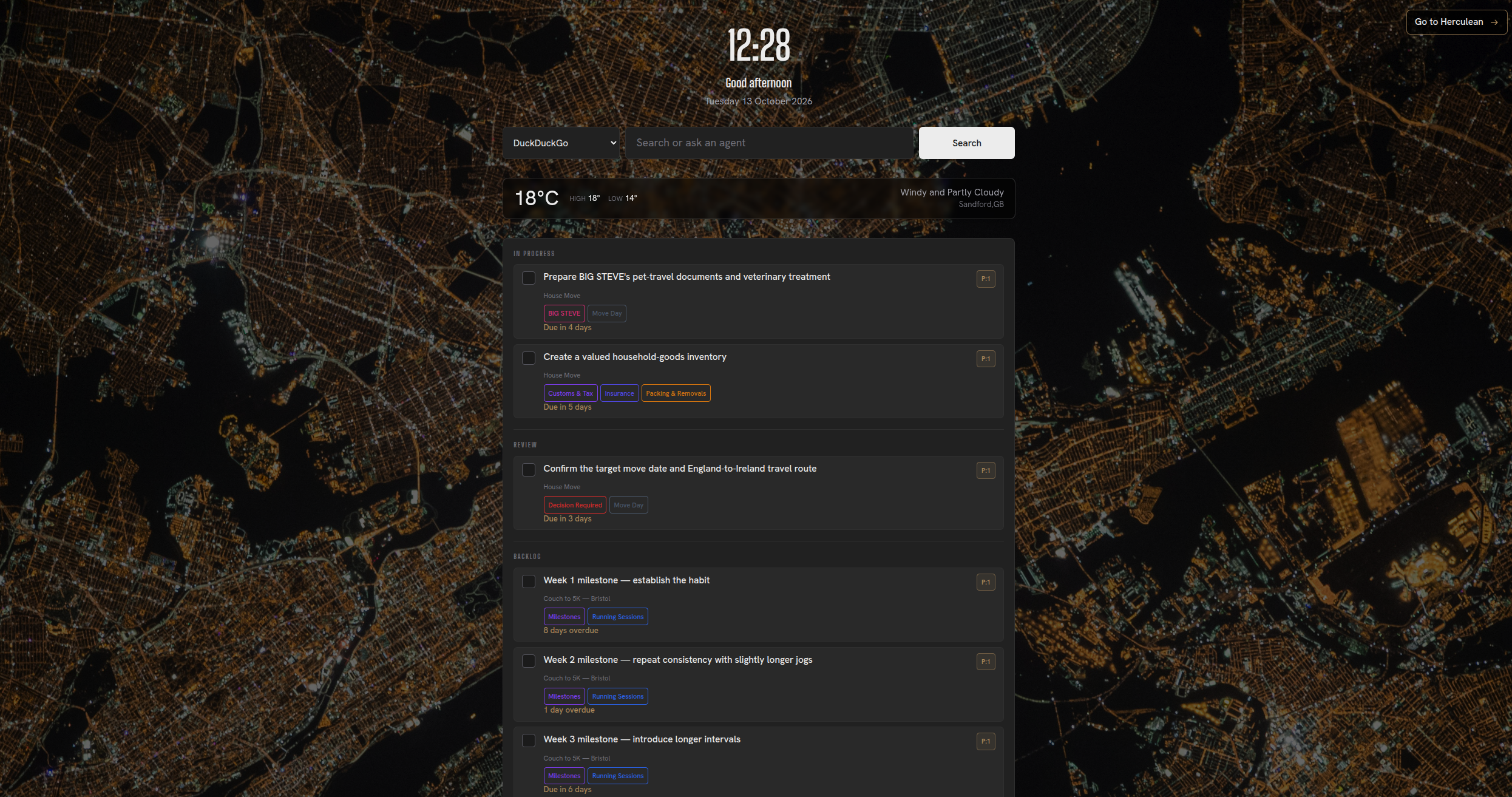
Tasks View
Removes the project groupings entirely and brings tasks from across all your projects into a single, unified view.
Tasks are displayed within their relevant workflow columns, with the originating project identified on each task row.
This gives you a consolidated view of your work without needing to navigate between individual projects.
Four ways to prioritise
Both views support four different prioritisation methods, allowing you to decide what deserves the most attention:
- Task Priority: Surface tasks according to their assigned priority.
- Upcoming Deadlines: Prioritise tasks by due date, starting with the oldest deadlines and moving towards upcoming commitments. See the Calendar guide to show those deadlines in a compatible calendar app.
- Project Priority: Surface work based on the priority assigned to its parent project.
- Board Order: Follow the ordering you’ve manually established within your project boards.
Add weather to your New Tab page
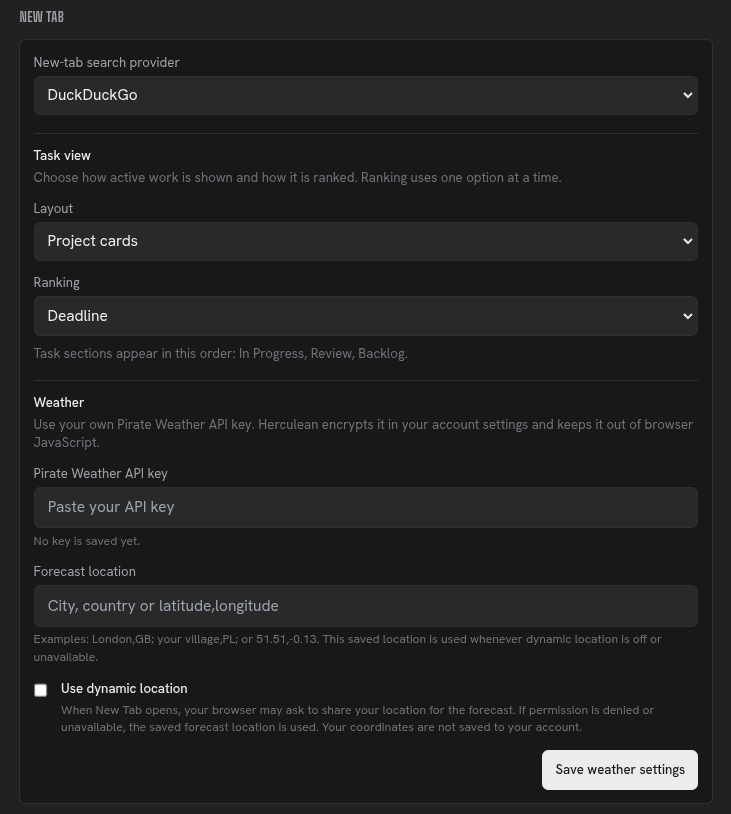
You can show a forecast for a location you choose. First, create a free Pirate Weather account and subscribe to its Forecast API to get your API key. Keep the key private.
Then in your Settings → New Tab → Weather section in Herculean, paste the API key into Pirate Weather API key, enter your location under Forecast location, and choose Save weather settings. Enter a city and country, such as Sandford,GB, or use latitude and longitude, such as 51.51,-0.13. The saved location is used if dynamic location is unavailable or turned off.
If you select Dynamic Location, Herculean will use your browser’s location services to determine your current location automatically.
This will usually require you to grant Herculean permission to access your location through your browser’s permission settings.
If you prefer not to share your location, that’s absolutely fine. However, Dynamic Location won’t work without the necessary permissions.
Instead, you can set your location manually, giving Herculean a fixed location to work with without requiring access to your browser’s location services.
Pirate Weather says a new Forecast API subscription can take up to 20 minutes to become active. See the Pirate Weather API instructions if you need help finding your key or subscribing to the forecast service.
Search or prepare a conversation
When the Herculean New Tab page loads, the search box is automatically focused, so you can start typing immediately without clicking anything.
From the Settings menu, you can choose your preferred search provider or select from a range of popular AI services. Read the Work with AI guide for more about connecting an AI service to Herculean.
Search Providers
If you’ve selected a traditional search engine, simply type your query and press Enter.
Herculean will take you directly to your chosen search provider’s results page, with your query automatically submitted.
AI Services
If you’ve selected an AI service, Herculean handles things slightly differently due to security restrictions imposed by AI chat providers.
When you type a query and press Enter, Herculean will:
- Copy your query to your clipboard.
- Open your chosen AI service in a new chat.
- Allow you to paste your query directly into the conversation.
You’ll need to paste and submit the message yourself. This avoids attempting to bypass the security protections that AI providers place around automatically submitting chat messages.
If you press Enter with an empty search box, Herculean simply opens your selected AI service without copying anything to your clipboard.
Related content
Continue with other guides and examples connected to this topic.
Settings
Manage board behaviour, New Tab and Pirate Weather options, calendar privacy, modal behaviour, and account access from one panel.
BeginnerWorkflows and columns
Use Backlog, In Progress, Review, and Done to track task status, archive completed work, and configure project columns when needed.
BeginnerUK Limited Company Setup
A full guide to UK company setup for a personal trainer covering taxation, governance and more
Advanced